Master realistic face swapping with Gemini Nano Banana. Follow our step-by-step guide to achieve perfect AI character consistency and professional edits.
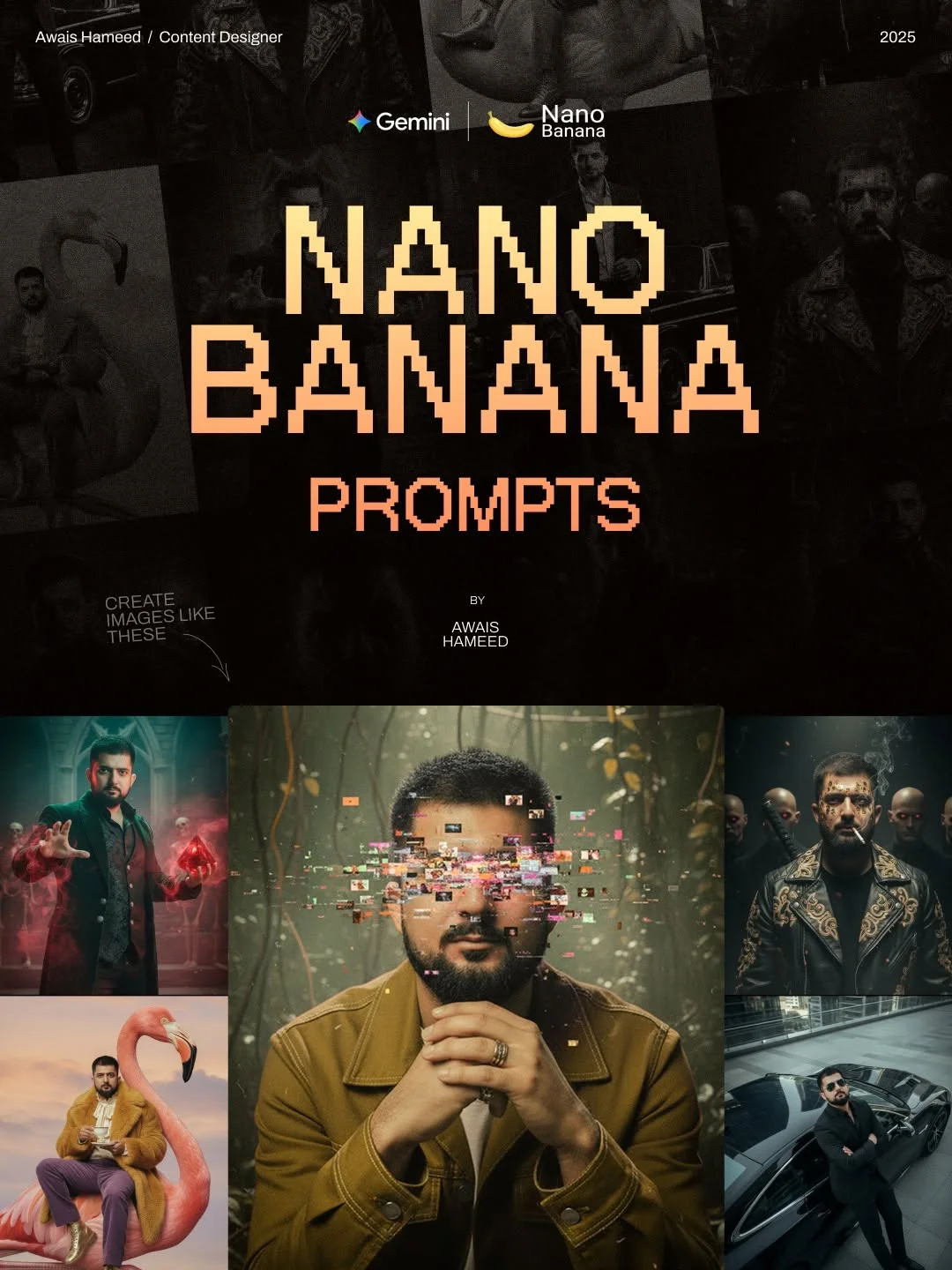
Master Face-Swapping with Gemini (Nano Banana): The Ultimate Guide
Have you ever generated the perfect AI image, only to realize the face looks nothing like you? It’s a common frustration for creators. Luckily, a new wave of AI image editing tools is changing the game. Today, we’re diving into the “Nano Banana” method using Gemini to achieve perfect face consistency.
What is Nano Banana?
Nano Banana isn’t just a catchy name; it represents a specific workflow within the Gemini AI ecosystem designed for high-end realistic face swapping. While many AI tools struggle to maintain a person’s unique identity across different scenes, Nano Banana excels at it.
Think of it as a specialized “wrapper” for AI instructions that tells the machine exactly how to blend a reference face into a new environment. It acts as a bridge between your imagination and the final render. Whether you want to see yourself as a dark magician, an atmospheric noir character, or a high-fashion model, Nano Banana handles the heavy lifting. It’s becoming one of the most popular social media design tools because it allows for one-click AI editing results that look professional rather than computerized.
Why Use Gemini Nano Banana for Face Editing?
The struggle with most AI portrait generator tools is the “uncanny valley”—that creepy feeling when a face looks almost human but not quite right. Traditional tools often blur out the fine details that make you you, like the specific shape of your eyes or the curve of your smile.
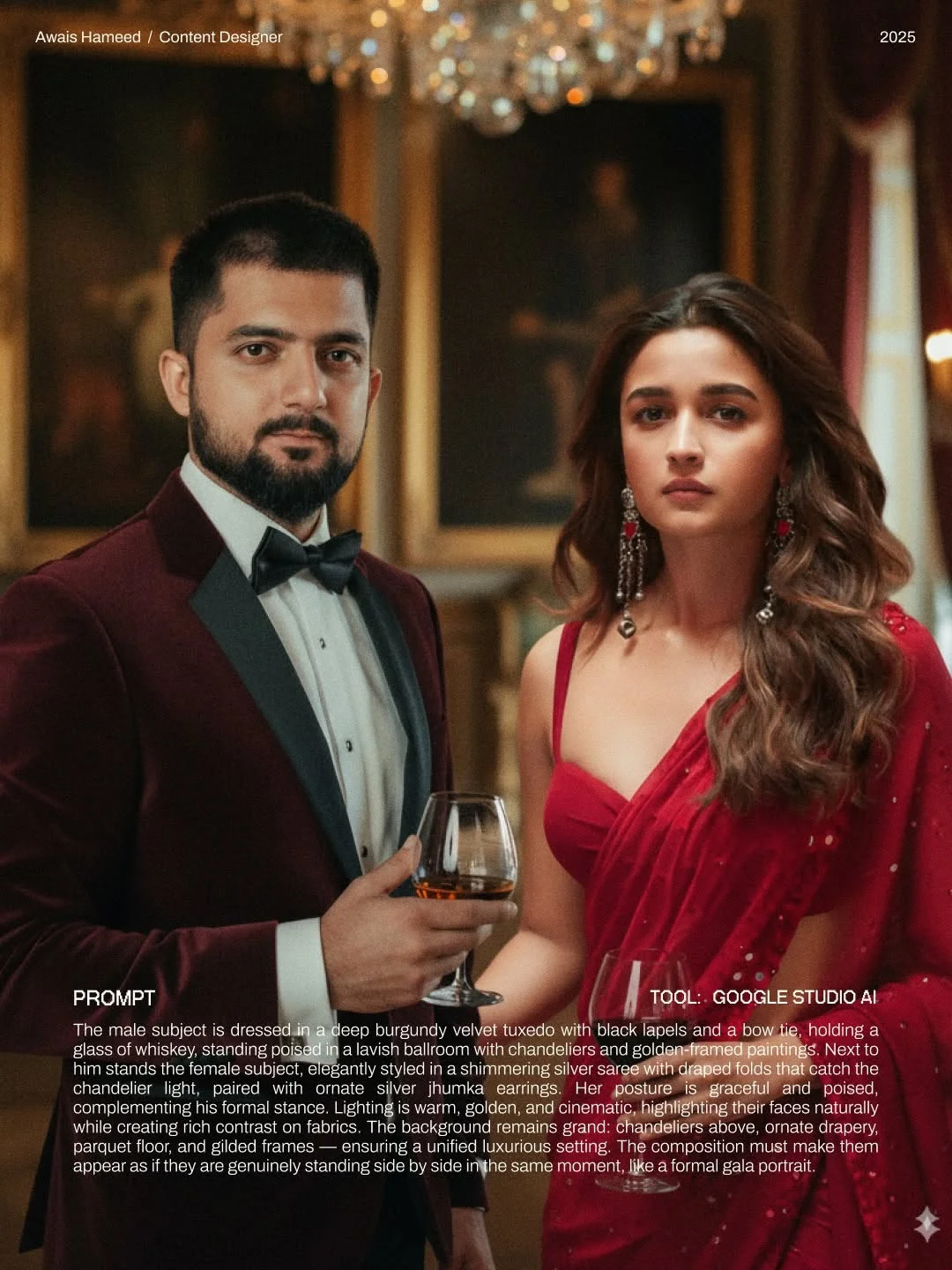
Gemini (Nano Banana) solves this by focusing on AI character consistency. It doesn’t just “paste” a face over an image; it regenerates the face using your reference photos as a blueprint. This ensures the lighting, skin texture, and shadows match the new scene perfectly. For aspiring digital creators, this means you can create a months’ worth of content without ever picking up a camera. It’s the ultimate no-code AI tool for anyone who wants to build a personal brand or a virtual influencer persona without needing a Hollywood budget or tech degree.
How to Set Up Nano Banana for Image Editing
Setting up your workspace is the first step toward fast AI photo transformation. You don’t need to be a coder to get started.
- Accessing the Gemini Interface: Start by logging into your Gemini AI dashboard. Ensure you have the latest version enabled, as the Nano Banana workflows often require the most stable engine to process complex textures.
- Navigating to the Nano Banana Toolset: Look for the image generation or “Vision” tab. Depending on your specific setup, you may need to toggle on “Reference Mode” or “Character Consistency” features.
- Setting Up Your Workspace: Keep your windows organized. Have a folder on your desktop with your “Source” face (you) and your “Target” style (the vibe you want).
- Choosing Reference Images: This is the most important part. For a realistic face swapping result, use clear, high-resolution headshots. Avoid photos with heavy filters, hats, or sunglasses, as these can confuse the AI. A straight-on shot with neutral lighting works best.
How to Fix Face Inconsistencies Step-by-Step
Ready to transform your look? Follow this simple five-step process.
Step 1: Uploading Your Base Image Start by uploading the “vibe” or the background scene you want to appear in. If you don’t have one, you can describe a scene from scratch using the prompts we’ve provided below.
Step 2: Adding High-Quality Face Reference Photos Upload 1-3 photos of the face you want to use. Using multiple angles helps the AI understand the 3D structure of the face, leading to better AI face replacement.
Step 3: Writing the “Nano Banana” Style Prompt This is where the magic happens. You need to tell the AI to merge the reference face with the specific environment.
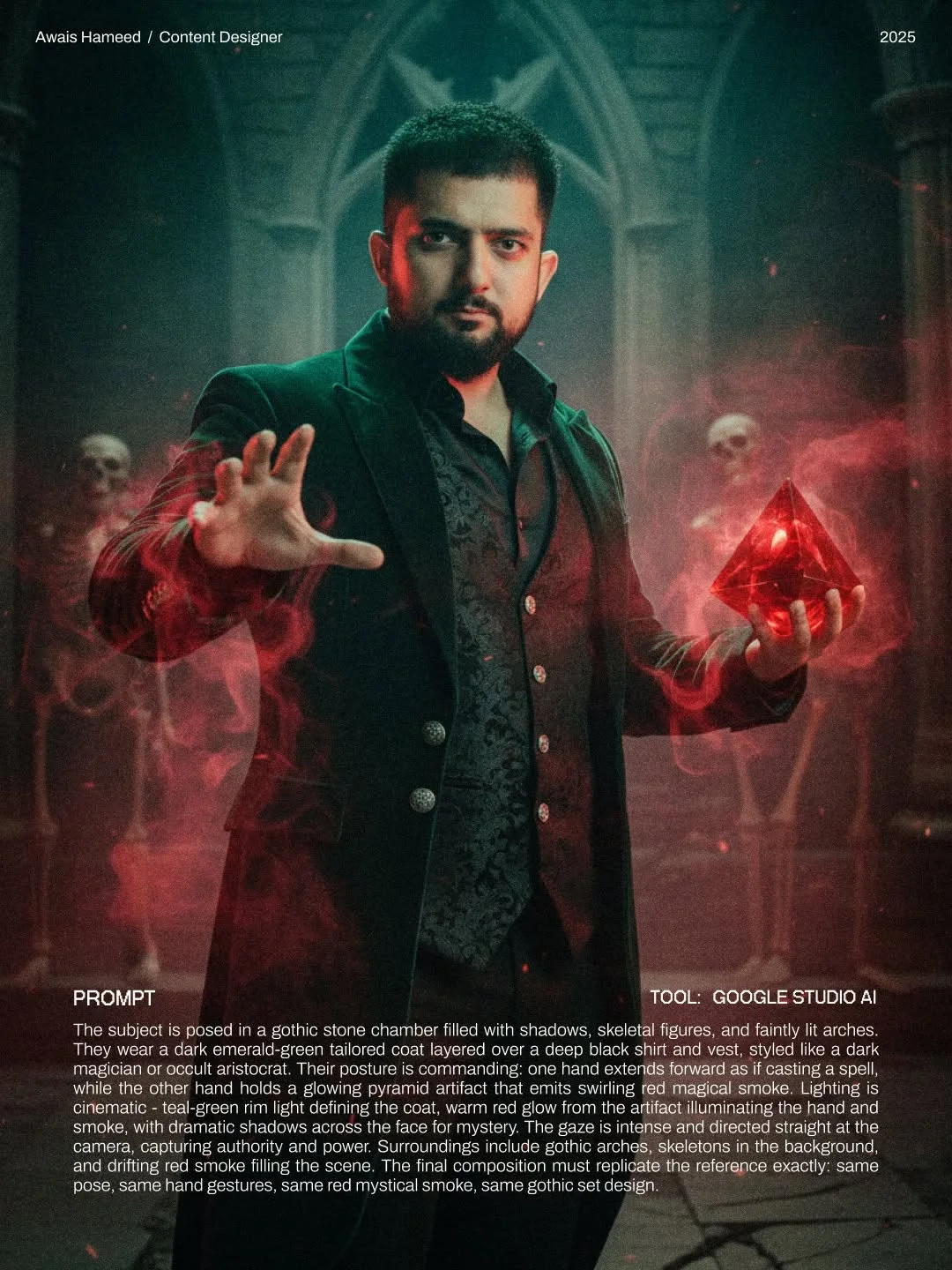
Step 4: Adjusting Settings for a Natural Blend Most tools have a “Strength” slider. To keep the face looking like the original person, keep the “Character Strength” high but the “Style Strength” moderate. This ensures the face doesn’t get “eaten” by the filters.
Step 5: Generating and Refining Hit generate! If the first result isn’t perfect, don’t worry. AI is iterative. Try slightly changing your prompt or using a different reference photo to sharpen the likeness.
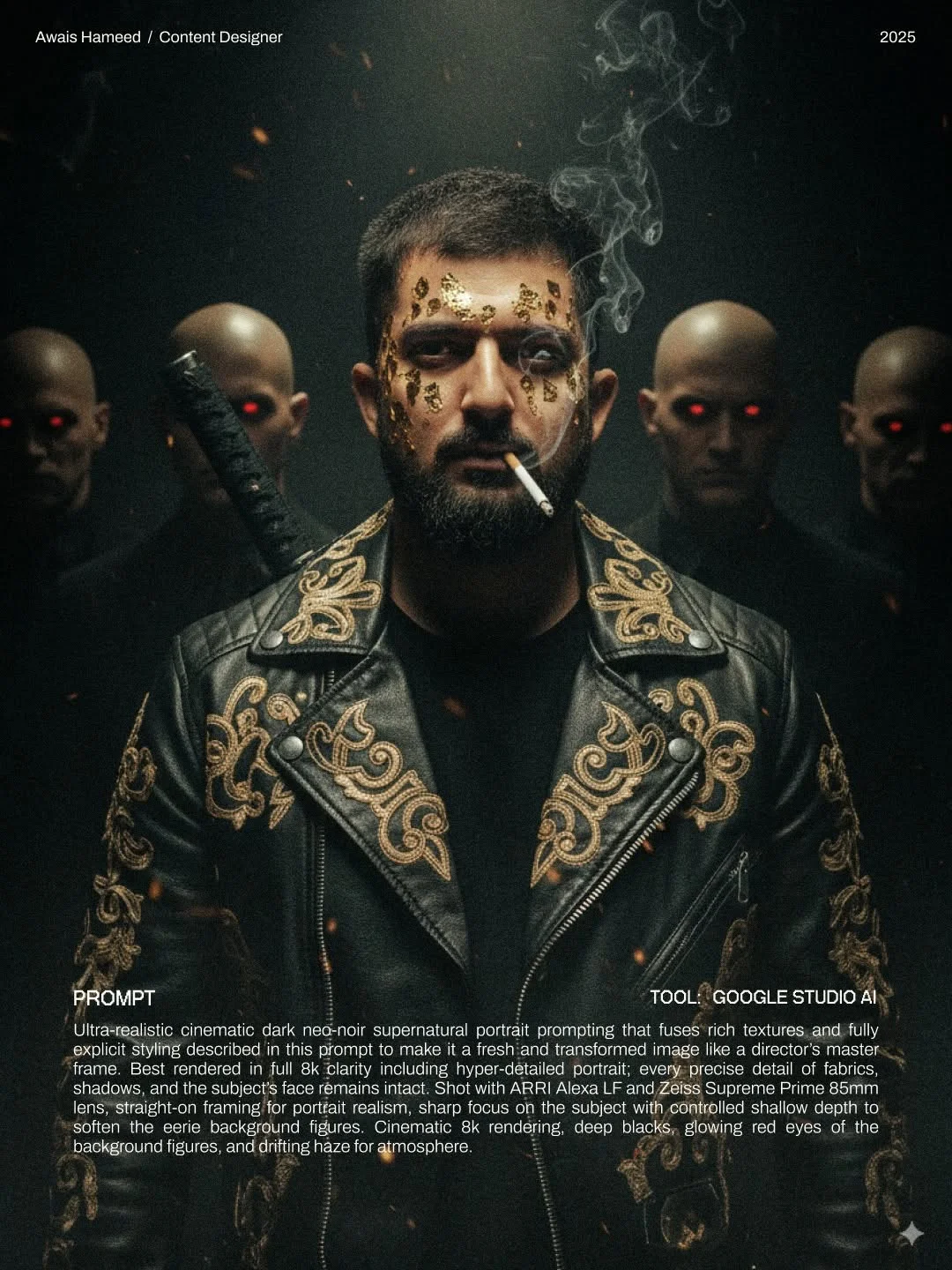
Benefits of AI Face Swapping for Creators
Why are 100,000+ creators moving toward automated image editing? The reasons are practical and creative.
- Consistent Personal Branding: If you are an AI influencer, you need to look the same in every post. Nano Banana ensures your digital avatar is recognizable across different “shoots.”
- Saving Time and Money: You don’t need to rent a studio or hire a photographer. You can be in a Parisian café in one photo and a futuristic sci-fi city in the next—all from your desk.
- Diverse Content Creation: One single base image of your face can be turned into hundreds of different pieces of content. This is a game-changer for visual storytelling AI.
- Social Media Growth: High-quality, surreal images stop the scroll. People are naturally drawn to high-fashion or cinematic imagery, which helps boost engagement.

Tips for Writing High-Converting AI Image Prompts
Writing creative AI prompts is an art form. To get the best out of Gemini Nano, follow these simple rules:
- Use Descriptive Keywords: Don’t just say “man in a suit.” Use words like “tailored charcoal wool suit,” “volumetric lighting,” and “8k skin texture.”
- Mention the Engine: Using terms like “Gemini Nano” or “Nano Banana” in your instructions helps the AI prioritize the consistency algorithms.
- Avoid the “Uncanny Valley”: Avoid over-describing the face itself. Instead, describe the lighting on the face. Let the reference images do the work of building the features while the prompt handles the environment.
- Use Templates: Don’t reinvent the wheel. Use the copy-paste templates provided in this article to guarantee a professional look every time.
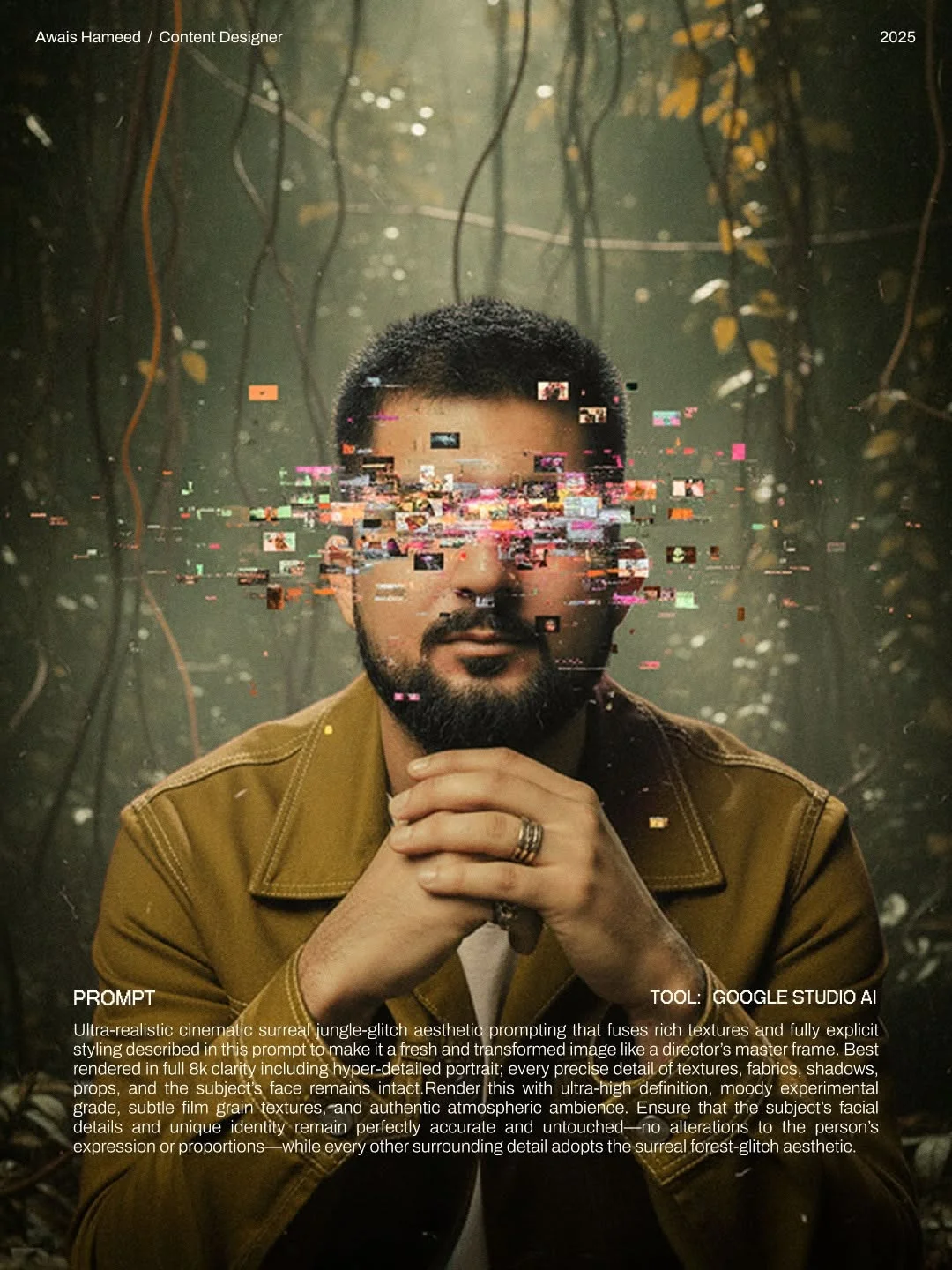
Advanced Editing Features in Nano Banana
Once you’ve mastered the basic how to face swap with AI process, you can explore advanced features.
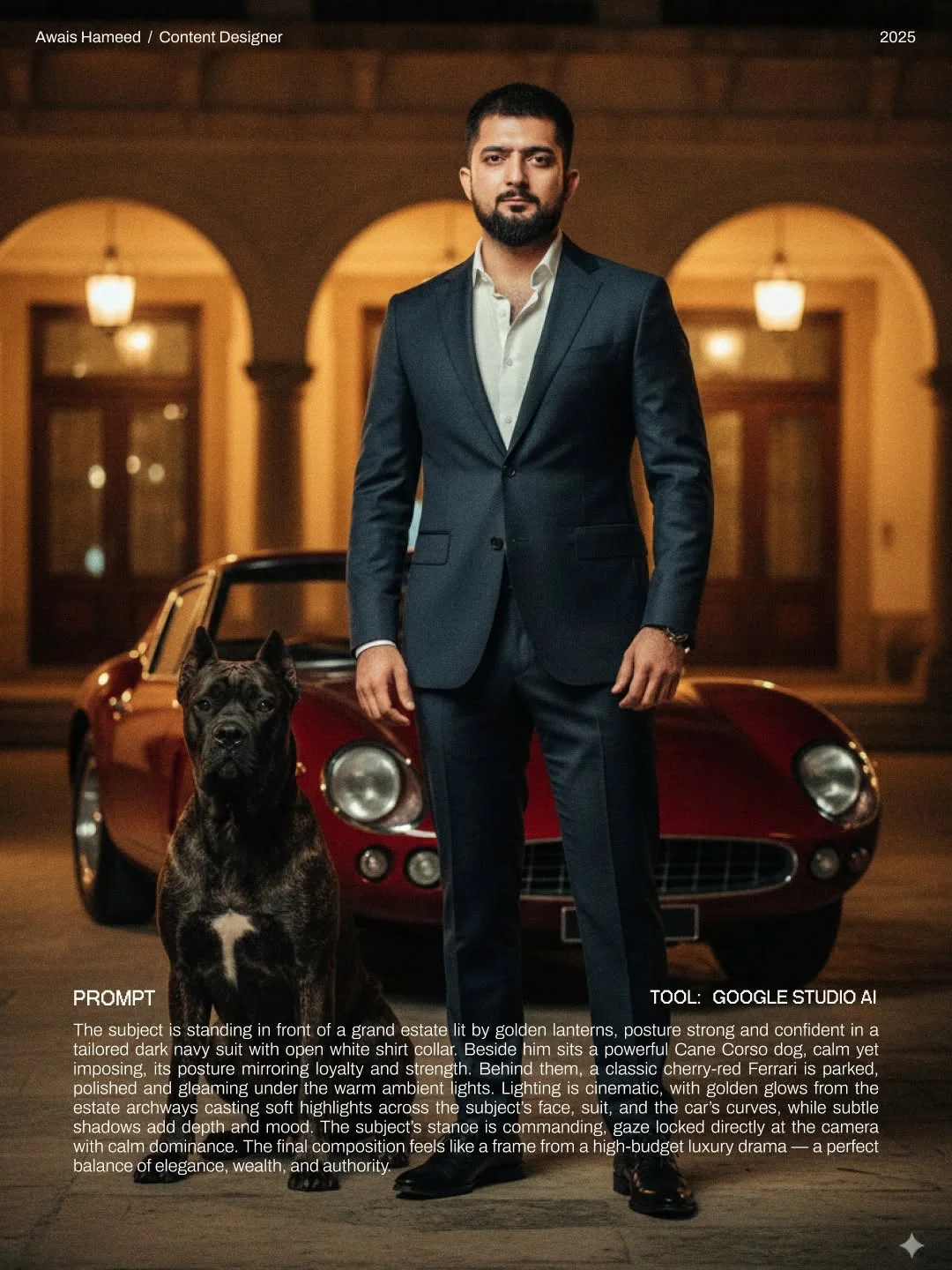
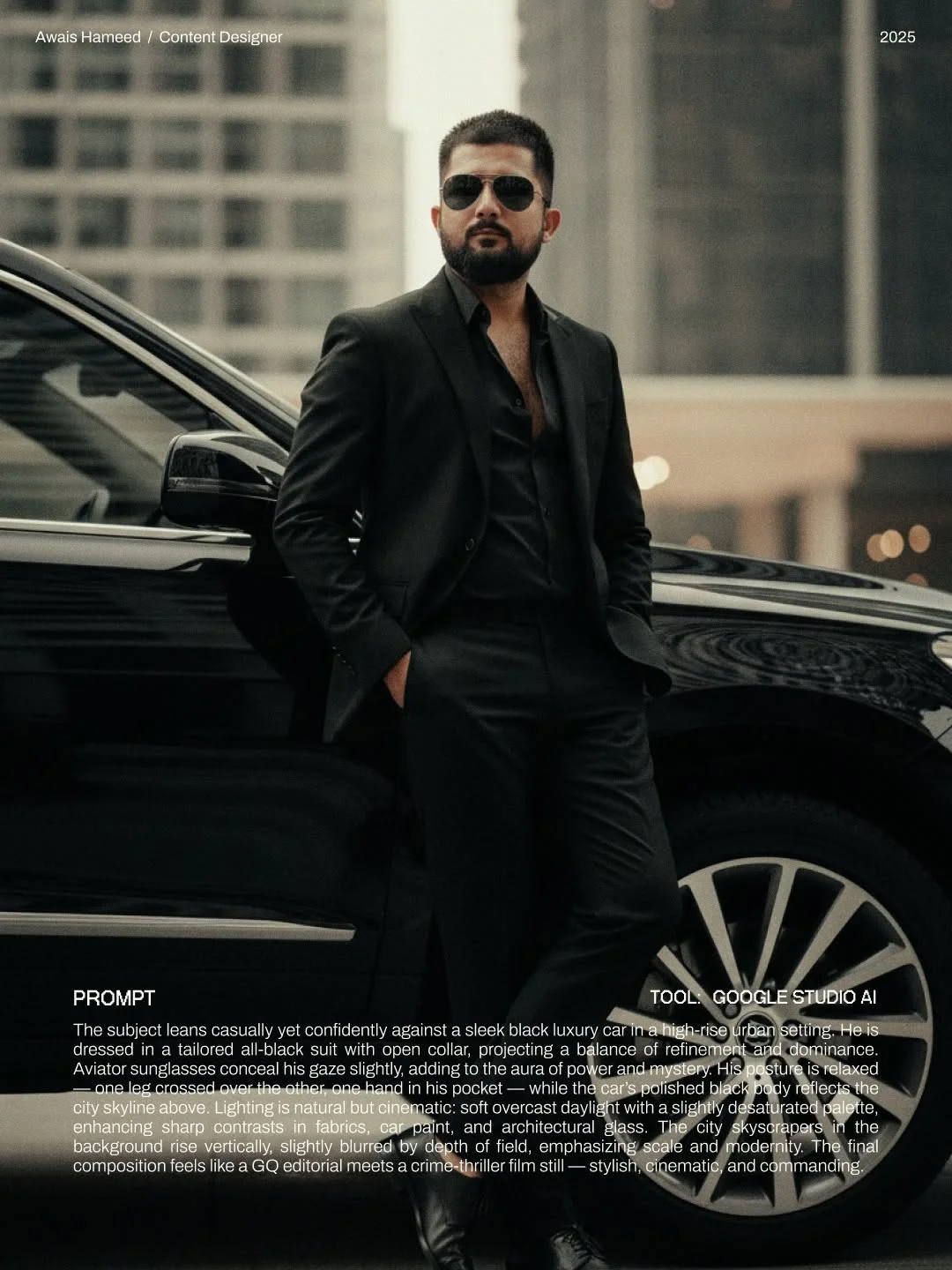
- Background Manipulation: You can swap the background without touching the person. Want to change a sunny day to a rainy night? Just update the “lighting” keywords in your prompt.
- Wardrobe Swapping: Nano Banana allows you to change outfits seamlessly. You can move from a velvet tuxedo to a navy suit while keeping the same pose.
- Color Matching: Using “cinematic grading” keywords helps align the colors of your face with the environment, making the edit look seamless and 100% real.
Ethical Considerations and Best Practices
With great power comes great responsibility. AI photo editing for beginners is fun, but it should be used ethically.
- Privacy: Only perform face swaps on yourself or people who have given you explicit permission.
- Disclosure: When posting on social media, it’s a good practice to use hashtags like #AIArt or #DigitalCreator to let your audience know the image was enhanced with AI.
- Authenticity: Use AI to enhance your creativity, not to deceive others. The best use of Nano Banana is for art, marketing, and storytelling.
Frequently Asked Questions
1. Is Nano Banana free to use for beginners? Many versions of Gemini offer free tiers, but advanced face-swapping features may require a subscription or “pro” credits depending on the platform hosting the tool.
2. Do I need coding skills to use Gemini for face swapping? Absolutely not! It is a no-code AI tool. If you can upload a photo and copy-paste a prompt, you can use it.
3. Which image formats work best for reference photos? High-quality JPEGs or PNGs are best. Ensure the file size isn’t too large (under 5MB) for faster processing.
4. How many reference images are needed for a perfect match? While one can work, three images (front, slight left, slight right) provide the best results for 3D realism.
5. Can I use Nano Banana on my mobile phone? Yes! Smartphone AI editing is growing rapidly. You can use Gemini through web browsers or specialized apps on your phone.
6. Why is my generated face looking blurry or unrealistic? This usually happens if your reference photo is low quality or if your prompt is too vague. Make sure to use keywords like “8k,” “highly detailed,” and “sharp focus.”
7. Is Nano Banana faster than traditional tools like Photoshop? Yes. While Photoshop offers more manual control, Nano Banana is a fast AI photo transformation tool that does in seconds what used to take hours of manual blending.
8. How do I get the specific prompts mentioned by @awaisthedesigner? You can copy the prompts directly from the tags in this article! For more daily updates and new styles, following @awaisthedesigner is a great way to stay ahead of the curve.
By using these prompts and techniques, you can overcome the “face doesn’t match” hurdle and start creating stunning, consistent digital content today. Happy creating